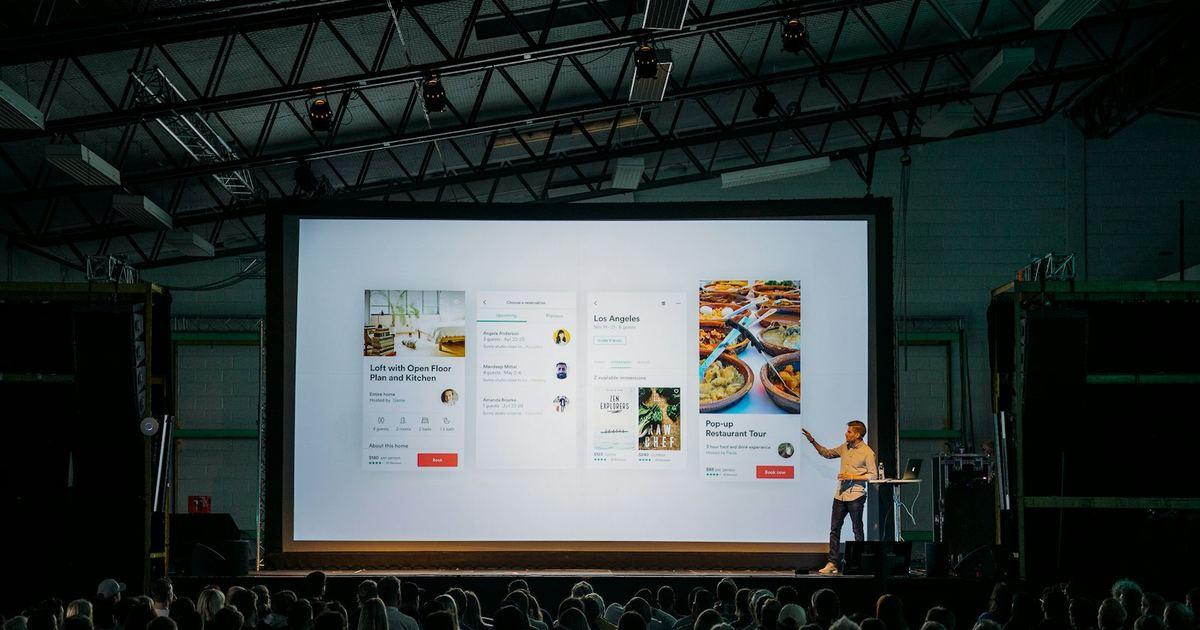
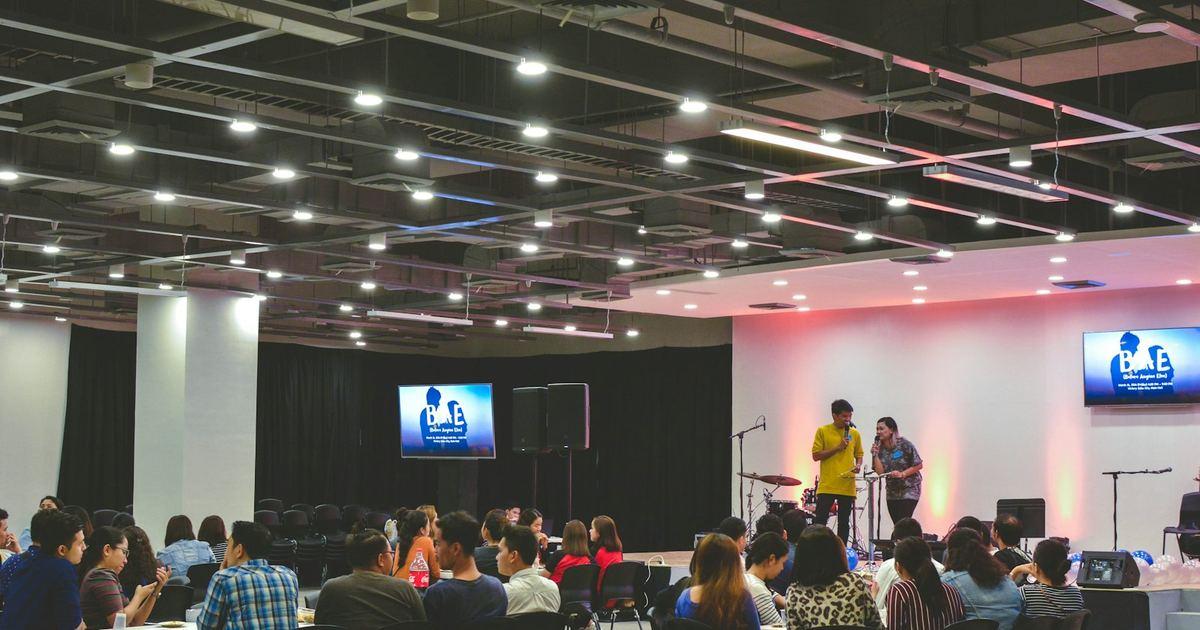
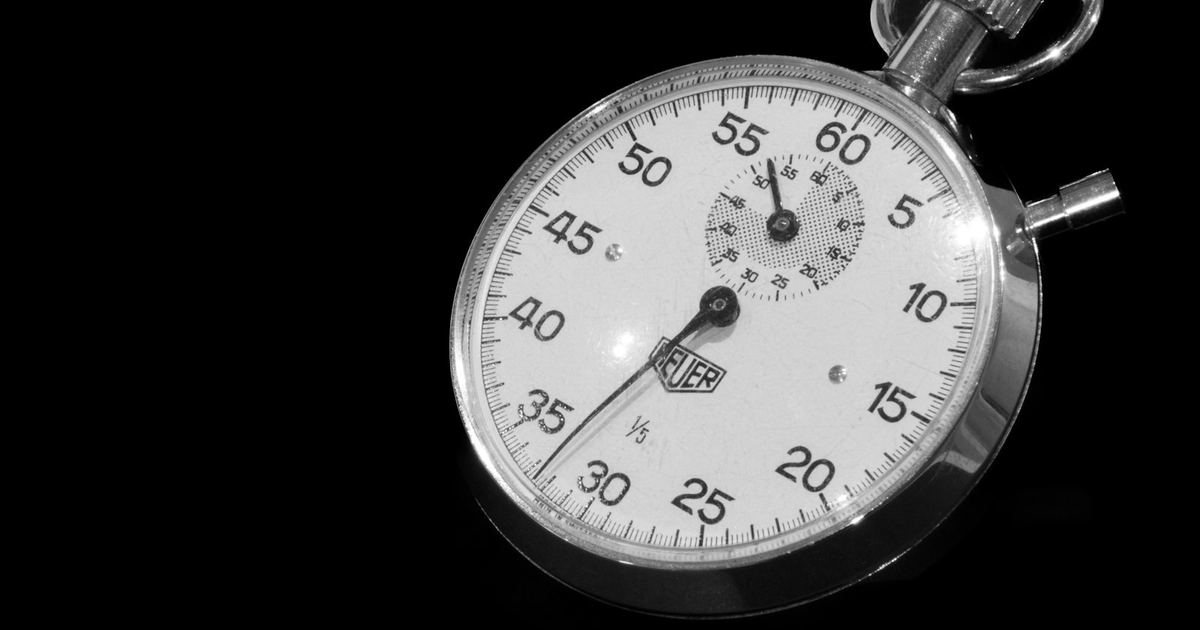
Run a presentation timer from somewhere else
Updated:
If the speaker runs the timer, they have to press buttons while talking. When someone else controls it from elsewhere, the speaker can just focus on speaking. With Kampe Timer, all you need is a phone and a screen.
What you need
Both run in a browser. No special hardware, no app to install.
- A display: a monitor, TV, tablet or laptop the speaker can see
- A controller: a phone or computer for the person running the timer
- An internet connection on both (if the venue Wi-Fi is unreliable, a phone hotspot works)
How to connect
Press “Create a free timer” on the home page to open the controller. Scan the QR code shown in the controller with the display device, or open the display link, and the two are connected.
The display link is view-only. Even if you leave it open on a venue computer, no one can control the timer from it.
What you can do from your phone
Every change appears on the speaker's screen right away.
- Start, pause and reset
- Adjust by −1 min, +1 min or ±10 s
- Show cues like “1 minute left” or “Please wrap up” on the speaker's screen (white, green or red)
- List each speaker's time in a run sheet and move to the next person automatically at zero
- Build the run sheet by pasting your agenda or program
- Ring chimes at set times (Pro, from a $5 Event pass)
Timing yourself?
If the speaker only needs to see the time, the timer on our Presentation timer page works on its own. Go fullscreen and put it on the lectern, and it becomes the speaker's clock.
Pricing
Remote control with up to 2 screens, cue cards and run sheets are free. Connecting 3 or more screens, removing the logo and chimes are Pro features ($7/month, or a $5 Event pass for 7 days with no auto-renewal).